Bash Startpack
April 15, 2020
Bash small pills
Here is a list of bash commands that may help you to familiarize with the bash command line.
I kept the list minimalistic so that can be used as reference.
To take in account: unix filesystem is case sensitive and you will encounter an error if you don’t abide this rule
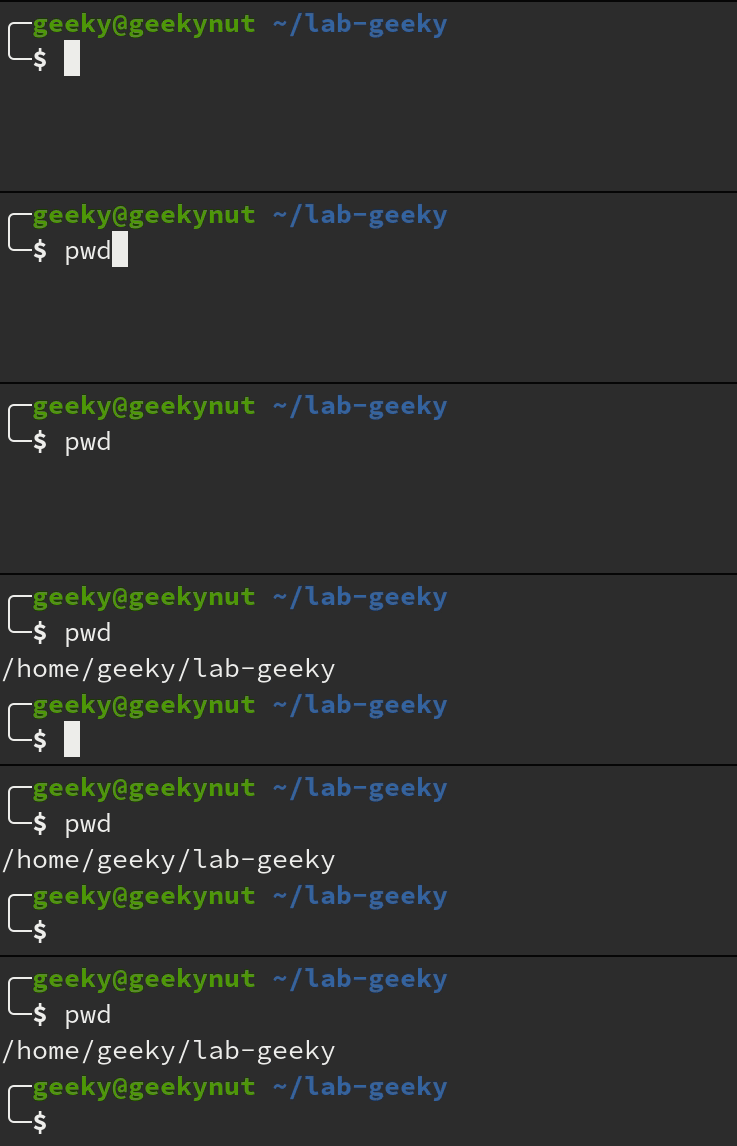
pwd print working directory
pwd stands for print working directory and as the name suggests it shows the directory we are operating from.
$ pwd
Change directory
cd stands for change directory and has the same functionality of cd in dos system. After the command you need to specify the name of the directory you need to move in. In ZSH bash if you use the tab key right after the cd command not only will auto-complete help you to spell the directory but you will be shown the available folders where you can navigate to.
$ cd name-directory

ls list files
ls is the equivalent of the dir command in dos command line, it lists the files and subdirectories present in the working directory.
$ ls

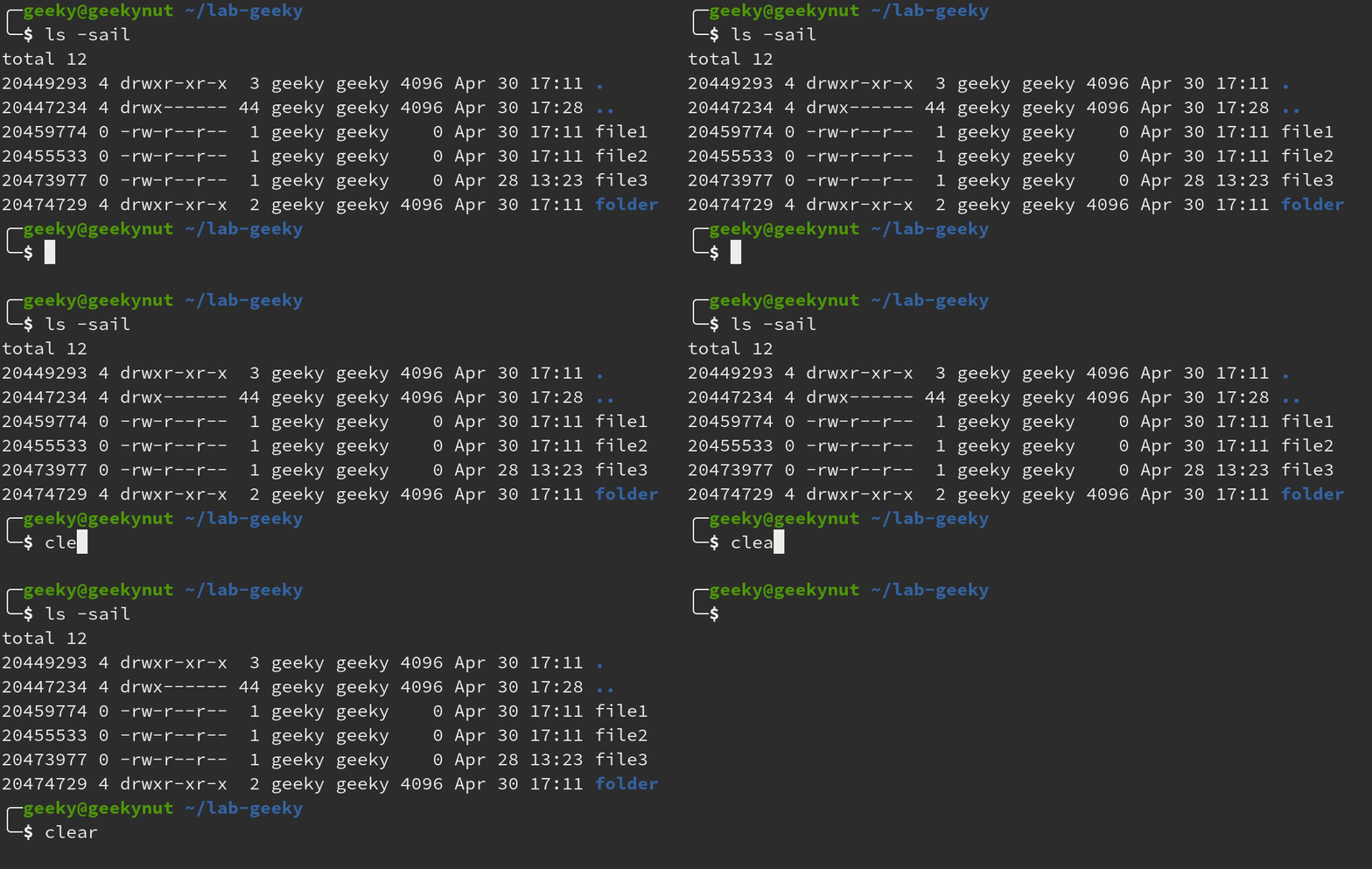
ls -sail
you can add arguments to ls so that the listing could be more specialized, to know more about what ls can do you can use the command ls —help or man ls to read the documentation. ls -sail is an easy mnemonic combination of arguments that gives you a fairly complete output
$ ls -sail

clear
clear is a useful command that cleans the bash from the previous outputs. You’ll find yourself using it a lot!
$ ls clear
mkdir create directory
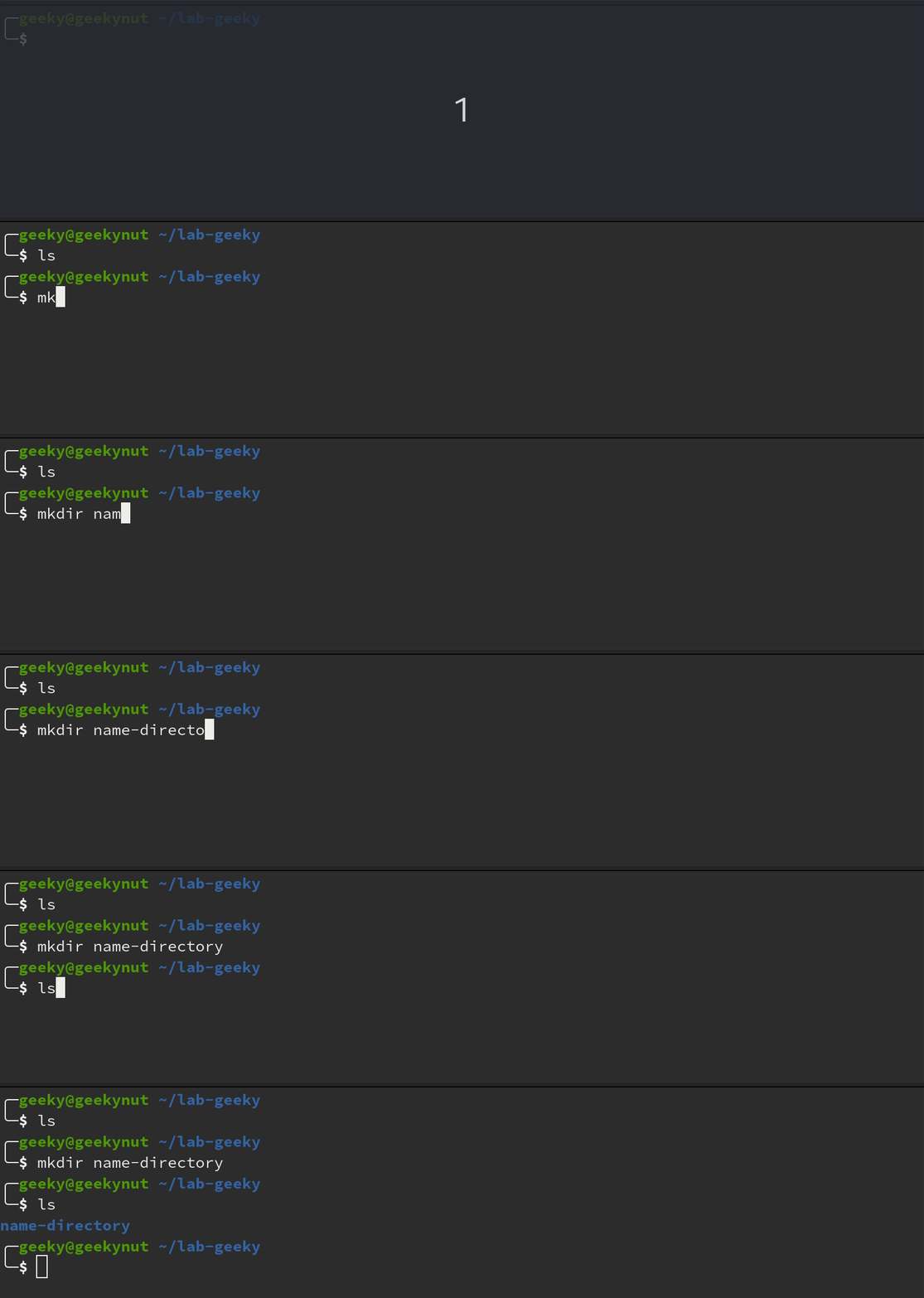
mkdir stands for make directory and as the name suggests it creates one or more folders. To use mkdir you just need to add the name of the directory you wish to create after the command, if you want to create more than one folder you can list them divided from a white-space
$ mkdir name-directory
rmdir remove directory
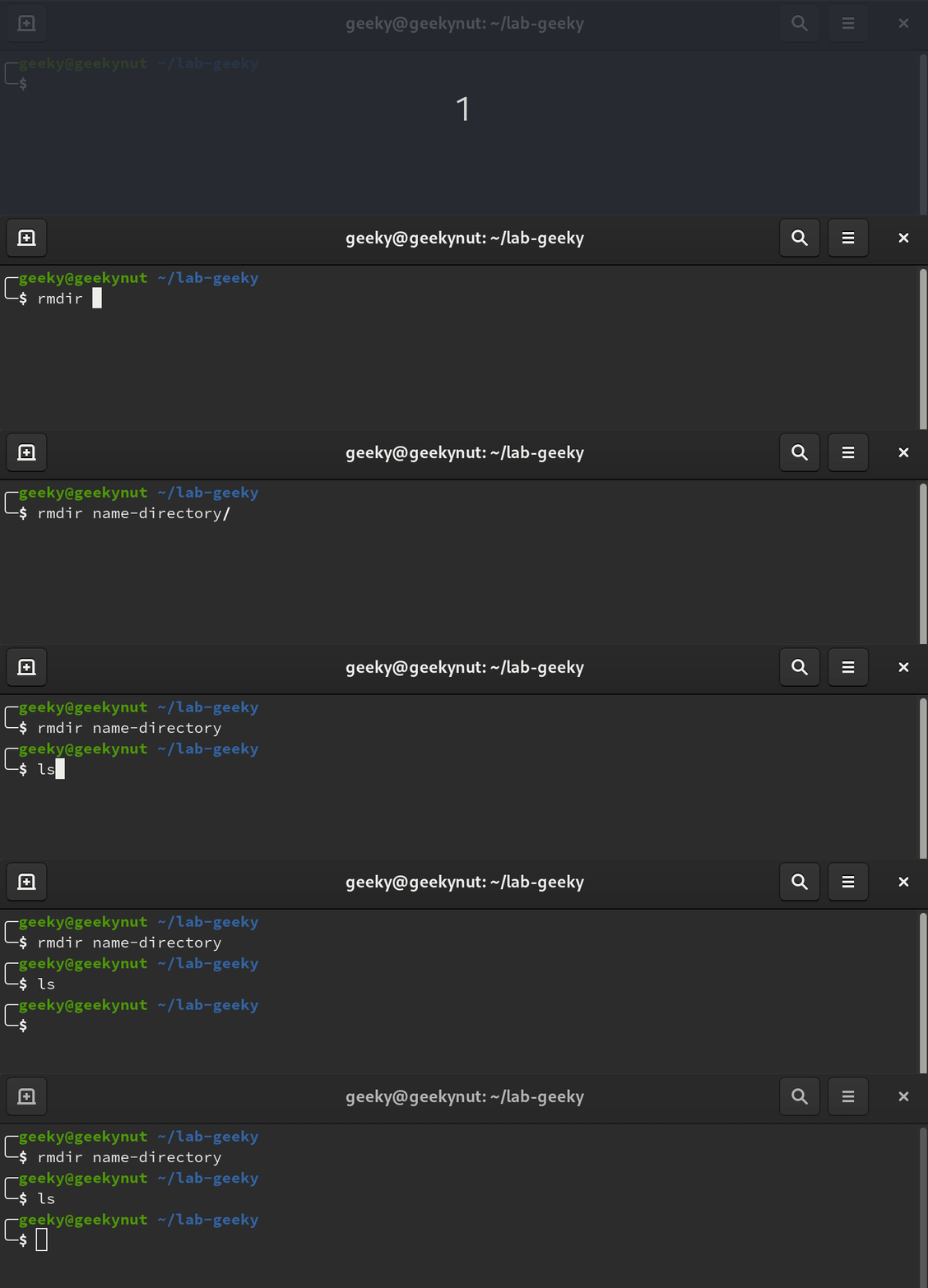
rmdir stands for remove directory and as the name suggests it deletes one or more folders. To use rmdir you just need to add the name of the directory you wish to delete after the command, for more than one folder to delete you can list them divided from a white-space. You cannot remove a directory using rmdir if it contains one or more files or directories.
$ rmdir name-directory
rm remove file/s
rm stands for remove file and as the name suggests it deletes one or more files. To use rm you just need to add the name of the file you wish to delete right after the command, if you wish to delete more than one file you can list them divided from a white-space.
$ rm file1

touch touches/creates files
touch is usually used to create one or more files. It’s useful when you want to create a bunch of empty files with a single command. If the files exists touch does only touch the files, this may not make sense but it could be useful if you need to test a program that starts when a file is saved.
$ touch file1

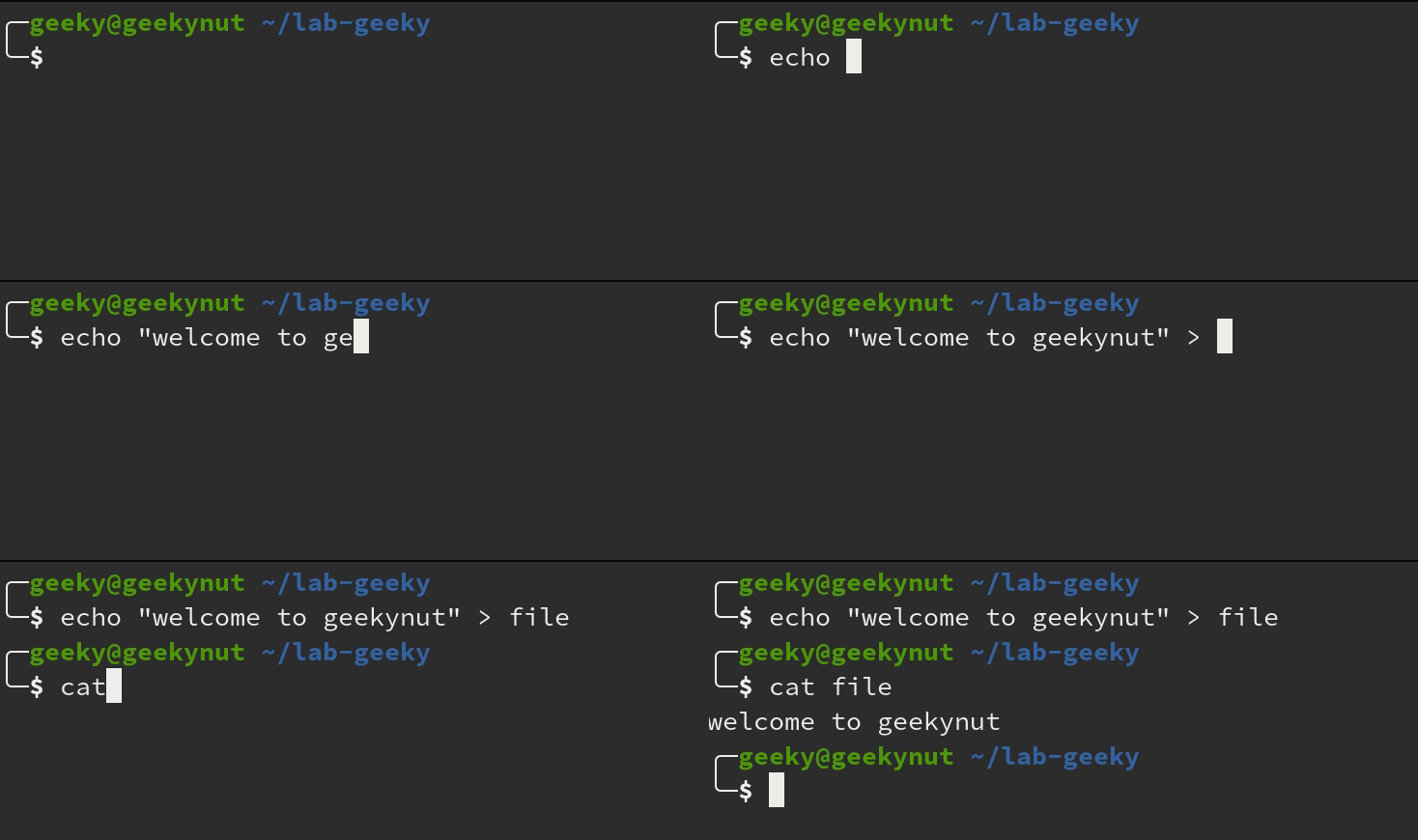
cat
cat is a useful command to read files sequentially. In case you wish to read only the head or the tail of a big file you can exchange cat with head or tail.
$ cat file